The Scottish Voices are supported on Android, offering child, teen, and adult Scottish text-to-speech options.
See below for installation and usage instructions.
Our websites:


The Scottish Voices are supported on Android, offering child, teen, and adult Scottish text-to-speech options.
See below for installation and usage instructions.
You can select the Scottish Voices directly in the downloaded CerePlay Scottish Education app, then enable 'Select to Speak' with a Scottish voice. 'Select to Speak' lets learners hear on screen text read aloud and highlight specific sections to support focus and understanding.
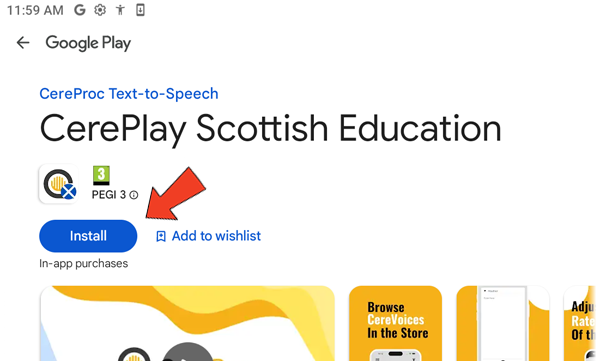
Install the Cereplay Scottish Education app from the Google Play Store.
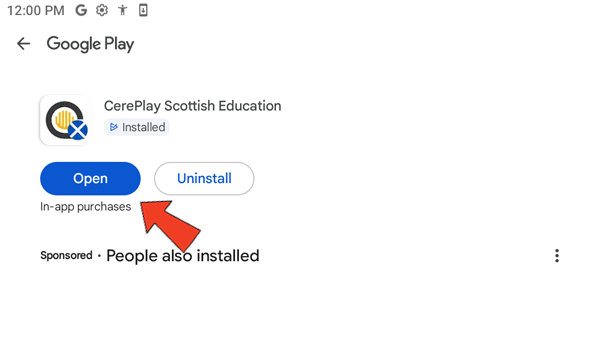
When it's installed, click on the 'Open' button.
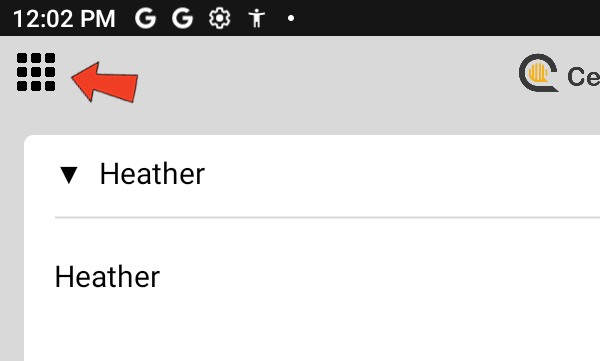
Click the 'waffle' menu in the top-left corner of the app.
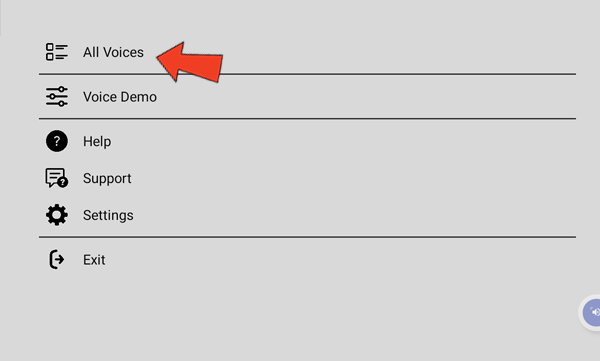
Click the 'All Voices' menu ite.
Click 'Scottish ' English' (or Gaelic), then choose the voice you want to download. This will begin the download process; follow the on-screen steps when prompted.
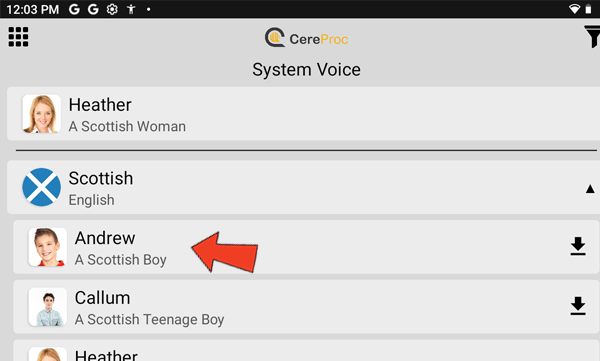
There are further settings that can be enabled for the voice. Please ensure that 'Cereproc Scottish Education' is set as the 'preferred engine'. To change the voice, click on the cog next to 'preferred engine'.
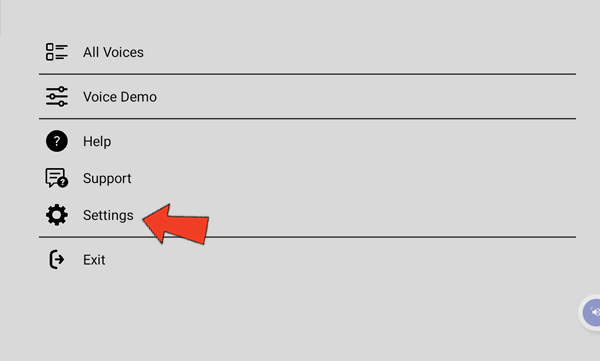
You'll now need to set up 'Select to Speak' in the Android settings. Tap the settings cog on your home screen to get started.
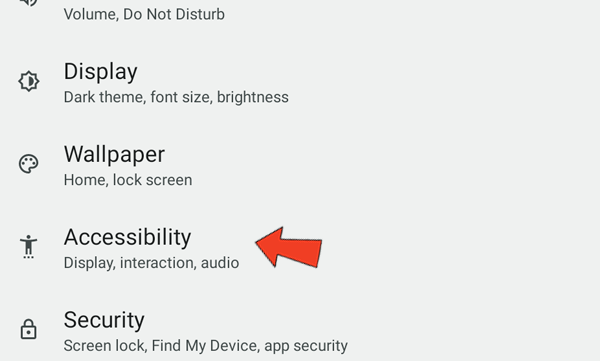
Click on 'Accessibility'.
Click on 'Select to Speak'.
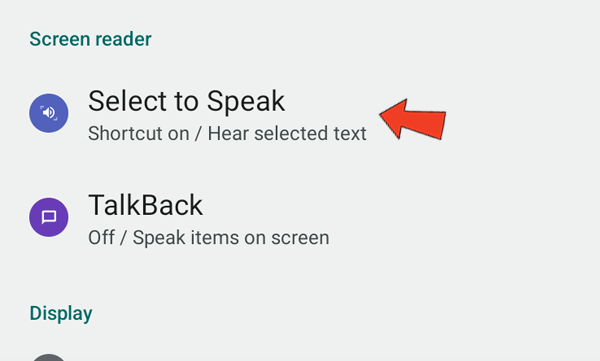
Enable the 'Select to Speak' shortcut and click on 'Settings'.
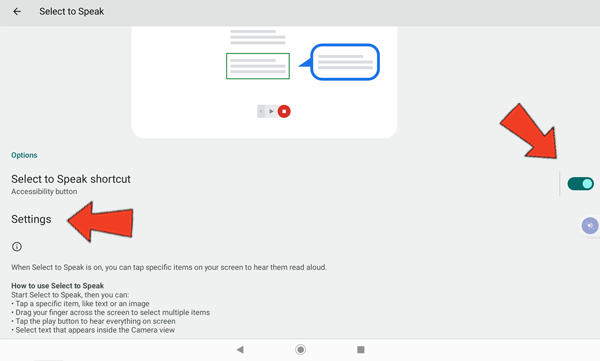
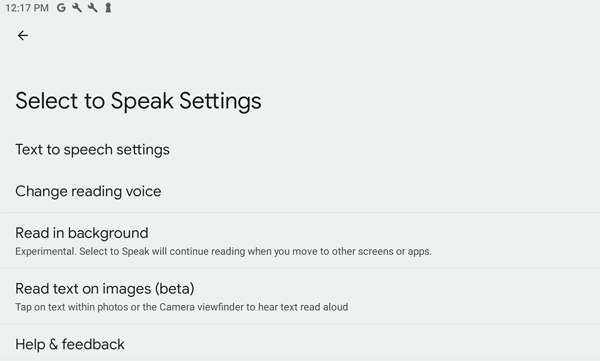
You can change the 'text to speech settings' from this screen which wil give you access to speech rate and pitch.
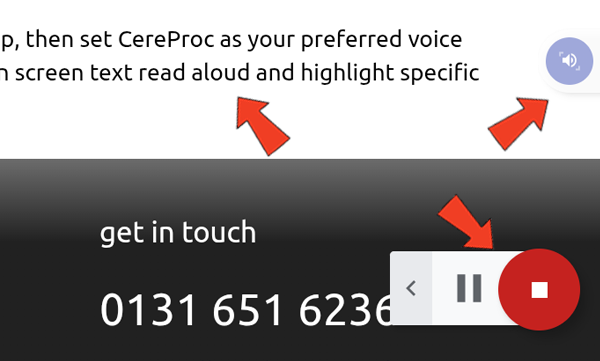
To use 'Select to Speak', navigate to a webpage and click the blue audio icon to open the panel. You may then click any paragraph of text to have it read aloud.
Our social media sites - YouTube, Twitter and Facebook