The Scottish Voices are supported on iPhone (iOS) and iPad (iPadOS), offering child, teen, and adult Scottish text-to-speech options.
See below for installation and usage instructions.
iPadOS/iOS 17.2+ required.
Our websites:


The Scottish Voices are supported on iPhone (iOS) and iPad (iPadOS), offering child, teen, and adult Scottish text-to-speech options.
See below for installation and usage instructions.
iPadOS/iOS 17.2+ required.
You can select the Scottish Voices directly in the downloaded CerePlay Scottish Education app, then enable 'Speak Selection' with a Scottish voice. 'Speak Selection' lets learners hear on screen text read aloud and highlight specific sections to support focus and understanding.
Install the Cereplay Scottish Education app from the App Store.
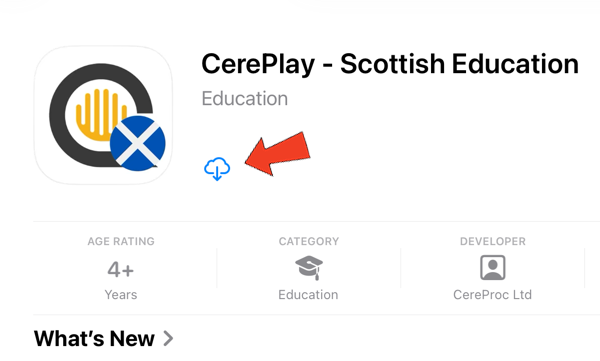
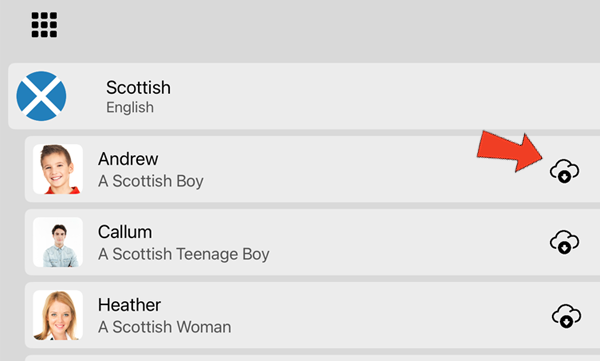
When it's installed, tap on the 'Open' button and download the voices you require by tapping on the 'cloud' icon next to each voice.
We recommend restarting your device after the voices have been downloaded and installed.
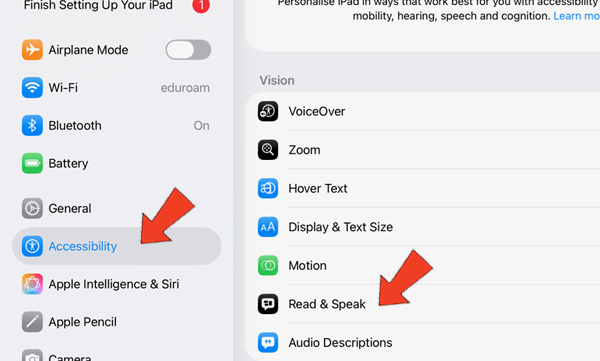
Tap the 'settings' app (the grey gear icon on your Home Screen). Next select 'Accessibility', then 'Read & Speak'.
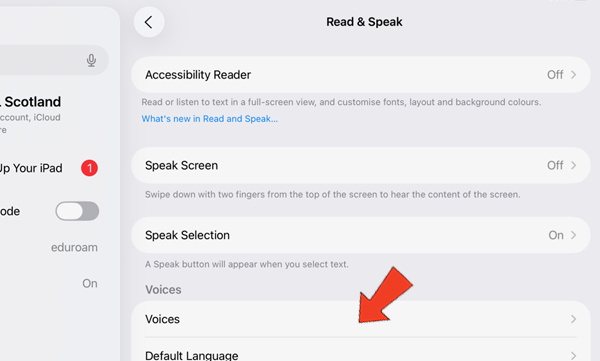
Tap the 'Voices' menu item.
Tap the 'English' menu item.
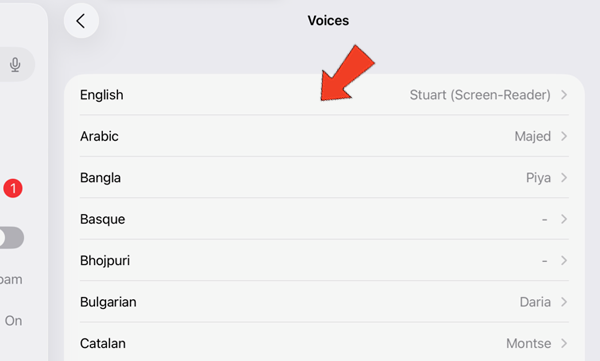
You can now see how the voice settings such as rate and pitch can be changed. Now tap the 'Voice' menu item.
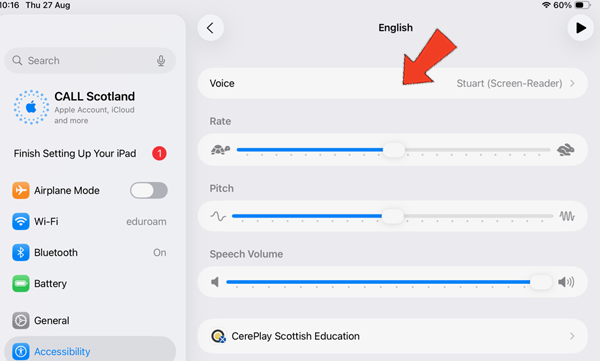
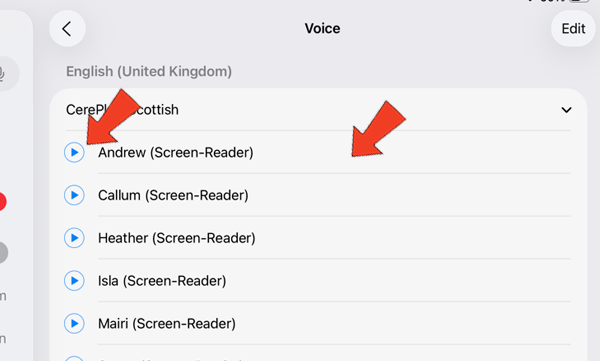
You have the ability to change to your preffered voice. You can also listen to each voice by pressing the blue play button.
Tap on 'Speak Selection'.
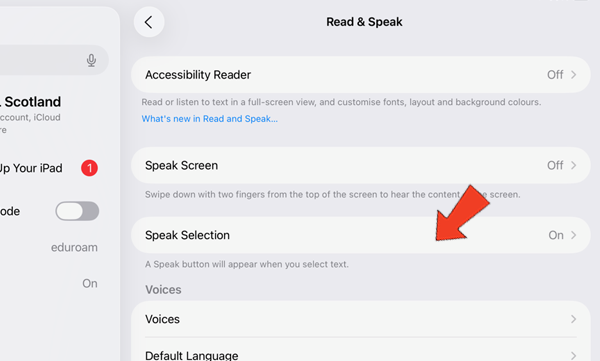
Turn on 'Speak Selection' to use it and then tap on 'Highlighting' to configure your settings further.
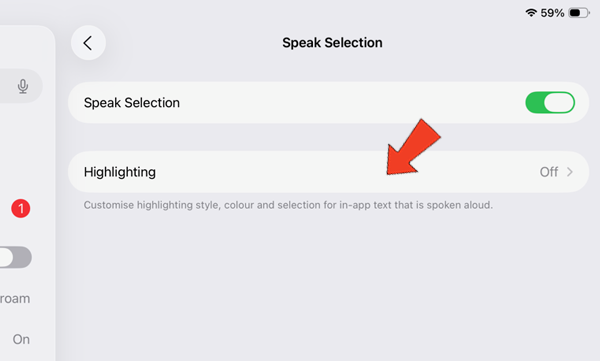
There are a number of options available that can be configured to suit your requirements.
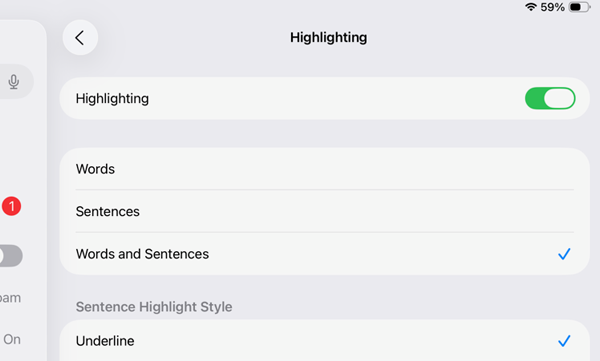
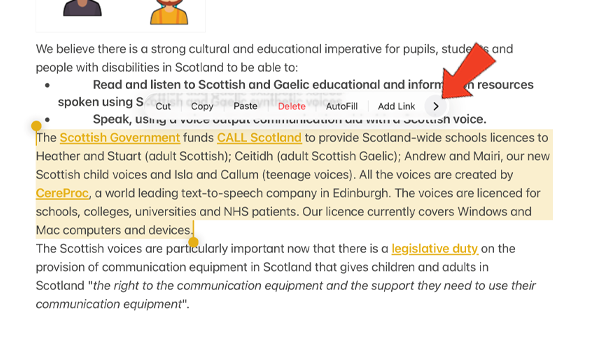
To use 'Speak Selection', you first need to select some text. On a webpage in Safari or another browser on your iPad, double-tap a word with one finger, then drag the blue selection handles to highlight the text you want. If the text is in an app, such as Notes (shown below), you can use the following gestures:
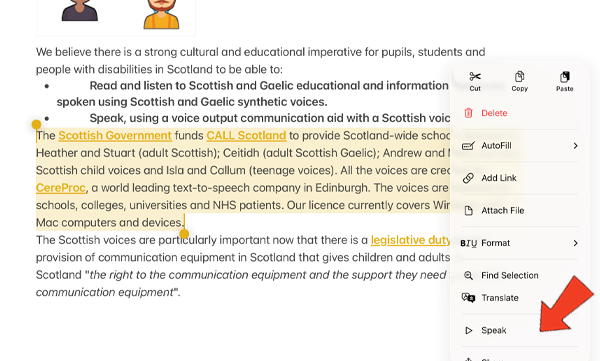
Once you've selected some text, a menu will appear. Tap the arrow at the end of the menu to view additional options.
You can now tap on 'Speak' to have it read aloud to you using a Scottish Voice.
Our social media sites - YouTube, Twitter and Facebook